Site Tools


Sidebar

Translations of this page:

Updated to 17/12/2025 patch. (Australian time). Consider me back for a little bit. -compsoter


Namespace Root
Table of Contents


Universal Tech

Status Effects

Item Tech

Character Specific Tech

Heroes

Removed Techniques

Removed Universal Tech

Removed Hero Tech


Created by compsoter

Maintained by compsoter, Acurrz, bonclide, dimeq, noct, monster_domosed, millie, and karebu

Hosted by .k8ict

template

Writing, Syntax and Template

Hey! So you discovered (or saw on a Discord channel) a new movement technique. Neat! By clicking this link, I assume you want to document the technique on the Deadlock Movement Wiki. Thank you!

Below are a bunch of general rules and resources to help you write a page or a new section of a pre-existing page. There are images (for the visual learners out there) with very large red circles (for the visually deficient people out there).

The wiki has a bit of a learning curve to start writing for (it's a lot more like writing a HTML webpage than a standard WYSIWYG software (like Google Docs)), but it should all be explained down below. If push comes to shove and what you've written isn't really up to standard, maybe I'll1) will fix it.

Starting out

Wow! You're getting started. But how do I get started?

Creating an account

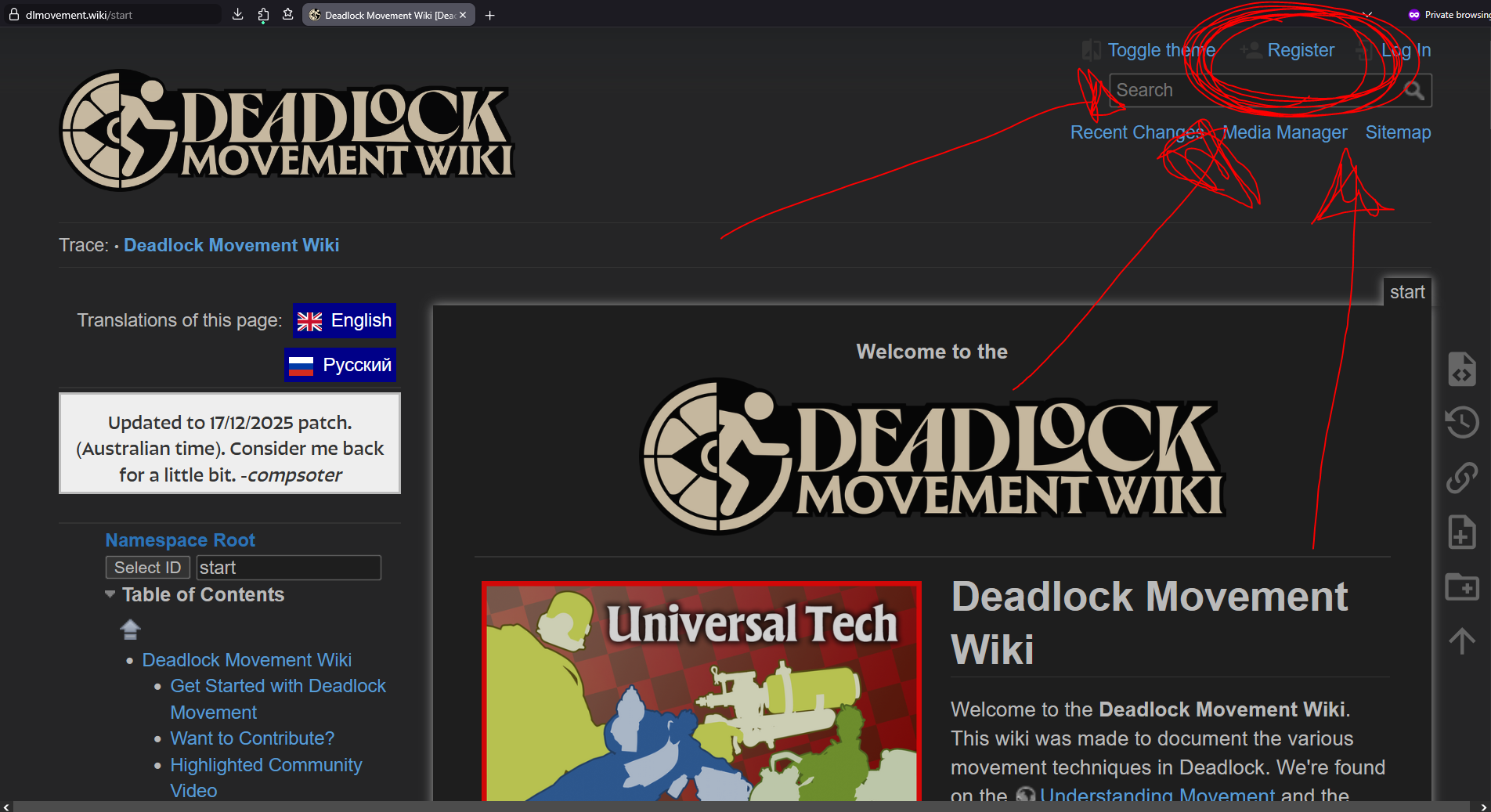
First, create an account on the Deadlock Movement Wiki. Click on the link circled in red shown below.

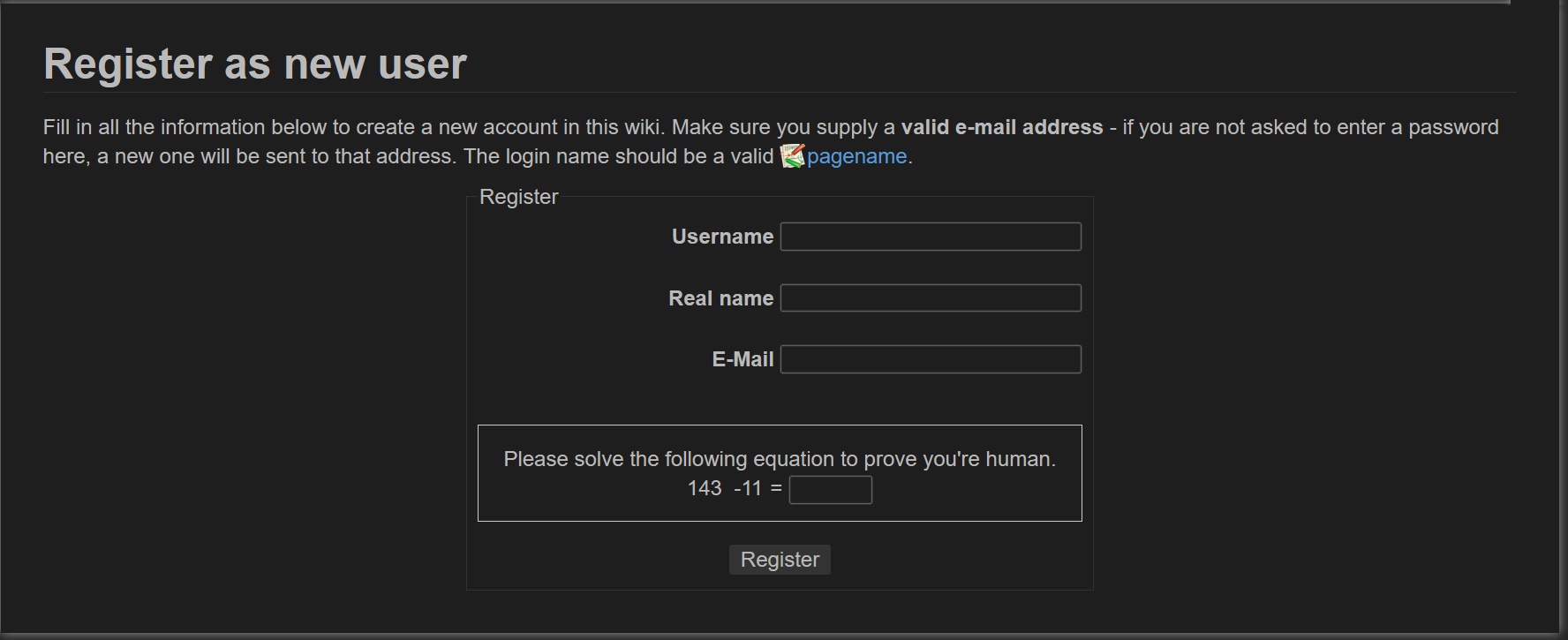
Then, fill out the form below. A note from the site admin; please do not include your real name, I don't want them.

Once that is done, you should receive an email and have an account. Yippee! You can now edit and upload files (including pages and images) to the wiki.

Creating/editing a page

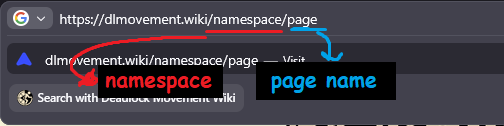
Go to your browser search bar and replace the link with what is relevant. First, you need to understand what the difference between a namespace is. - A namespace is like a folder. For links, these are signified by the words separated by slashes preceding the last one (see the image below). A namespace can also be a page. For example, the page Stamina is in the Universal Tech namespace, and the link is dlmovement.wiki/universaltech/stamina. There is also the page Universal Tech, which has the link dlmovement.wiki/univeraltech.

  1. The Deadlock Movement Wiki has six main namespaces. 99% of the time, you'll put your page into one of these namespaces;
    1. hero, where character specific techniques go;
    2. itemtech, where item specific techniques go;
    3. universaltech, which is where universal techniques that can be performed by more than one character go,
    4. statuseffects which is where movement relevant status effects go,
    5. primelock which is where the Primelock Movement Wiki is located, and;
    6. viscous, which is where the wiki version of the Viscous Deep Dive is located.
      1. For primelock and viscous, they have their own version of the other four namespaces (primelock has its own universaltech namespace (dlmovement.wiki/primelock/universaltech/stamina))

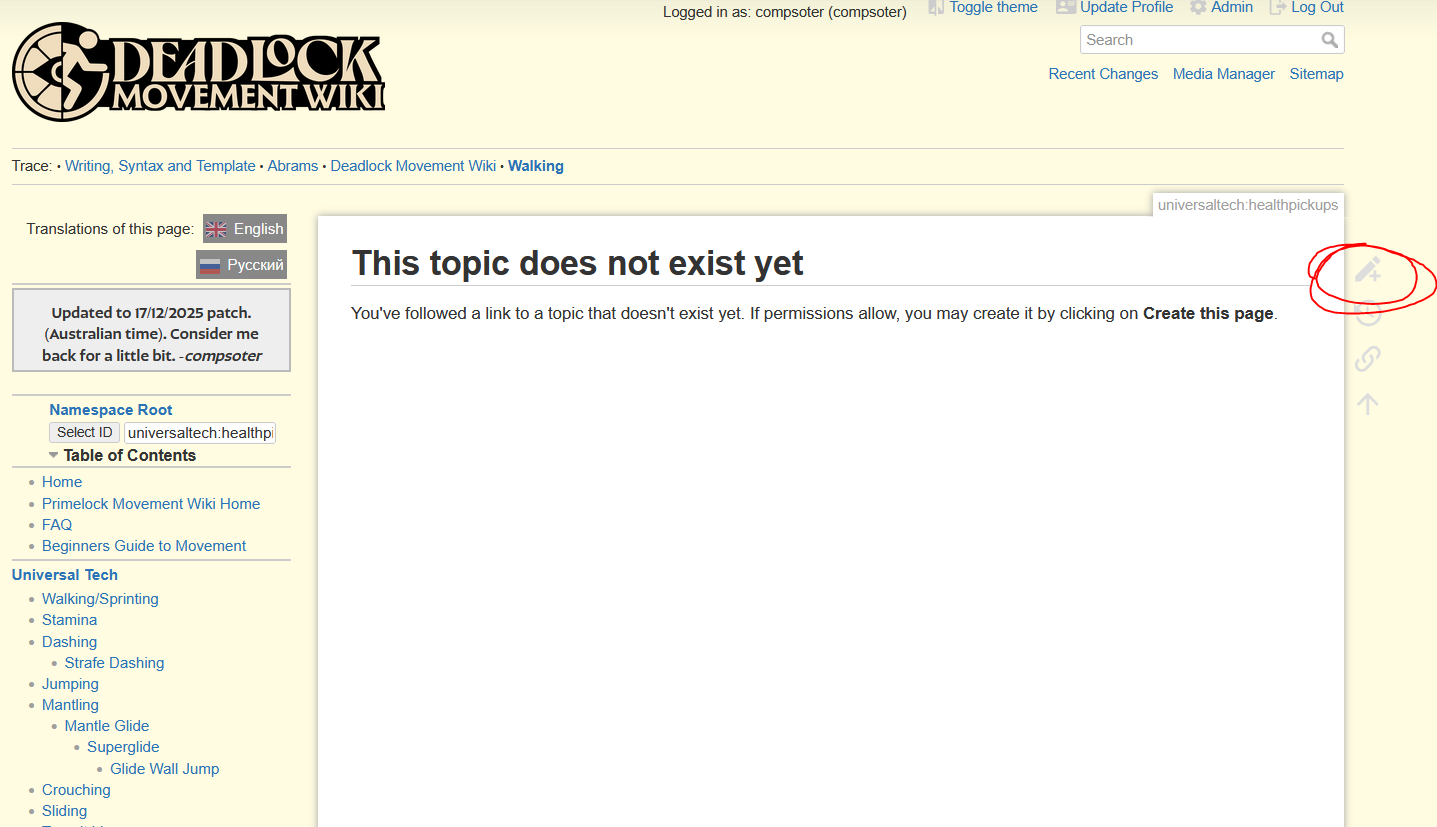
To create a page, make a new link by substituting what namespace you want and what you want the page to be named into the dlmovement.wiki link (e.g. if I wanted to create a page on health pickups in the namespace universaltech, I would type in dlmovement.wiki/universaltech/healthpickup). If the page doesn't exist yet, you'll be greeted by this page. To create a page, click on the button next to it. If the page exists, hovering over the button will say “Edit this page” instead, and the icon will be slightly different (but still at the top).

Writing a page ( + basic syntax)

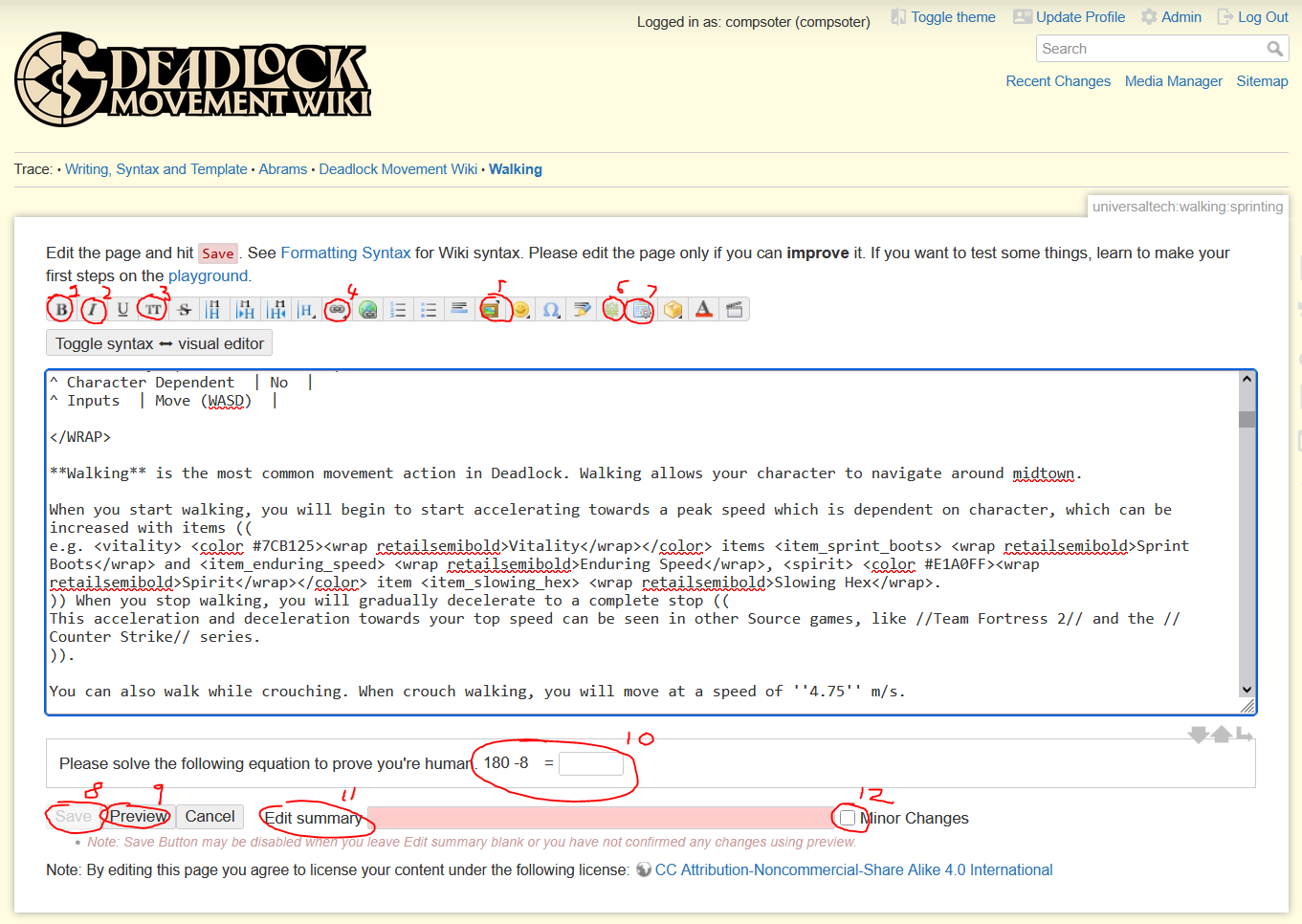
You'll be greeted by a screen that looks like this.

There are buttons on the top row; hovering over these will tell you the function of them. The most important functions are numbered;

  1. The bold text button bolds the text selected. Clicking on it without selecting anything will create a placeholder string.
  2. The italic text button italicises (tilts) the text selected. Clicking on it will without selecting anything create a placeholder string.
  3. The monospace text button monospaces the text selected. Clicking on it without selecting anything will create a placeholder string.
  4. The internal link button adds an internal link to a page in the Deadlock Movement Wiki. A pop-up will open which allows you to select the page or namespace you want to link to.
  5. The add images button opens a media file pop-up, which allows you to upload images and files to the Deadlock Movement Wiki. First, select your namespace on the side, submit your file via the button that says “Select File”, then press “Upload.”
  6. The custom button allows you to insert custom strings specifically made for the Deadlock Movement Wiki. This is elaborated on in the section Custom Strings.
  7. The insert table button allows you to make a table with a graphical interface, similar to how you might edit or manipulate a table in Word or Google Docs. To go back to the main editing page, save the table below (solve the maths question and submit a temporary edit summary)
  8. The save button saves the page. This is the very last button you press, and will exit you to the page
  9. The preview button previews the page below the editing region as though a viewer of the page might. This is very useful for visually confirming your edits.
  10. The edit summary text box is for submitting a summary of your edits (e.g. if you changed a paragraph on how stamina recharges because a patch came out, you might say “Changed paragraph on stamina recharges in accordance to XX/XX/XX patch”)
  11. The minor edits button allows you to signify that this was a minor change. Use this for small grammatical or word changes; anything that does not change the core content of a page.

Writing in the box is similar to how you type in a word processor like Word, except that it is monospaced and there is no formatting applied to it (to view formatting, you have to preview the page and scroll down). Utilising the template and adapting it to your movement technique, write about it! There are general guidelines listed below in the General writing guidelines section.

There are some additional formatting options you can use:

  • You can create footnotes by surrounding a selection with double brackets (e.g. the phrase “I ate a 2)burger3)” is typed I ate a ((vegan))burger((I didn't))

The wiki makes extensive use of the wrap plugin to execute its formatting. View its documentation at https://www.dokuwiki.org/plugin:wrap, or copy paste from a Deadlock Movement Wiki page. If you are writing a character tech page and want sections to be formatted separate, use the custom string <WRAP box nobox> and </WRAP> around elements; this will ensure they are spaced properly.

Once you are done, solve the maths question and press save. The edit will be published and be visible to everyone. There is no cooldown on editing a page.

General writing guidelines

There are general writing guidelines. These are loose; if a pages contents work better disregarding one of these guidelines, then it will stay.

  1. If the movement technique can be recorded, provide a clip. This is elaborated in the section clips.
  2. Make sure there are no lone sentences; these look out of place in the page. Make sure you write paragraphs
  3. If you did testing, please provide it in a footnote
  4. Bold ONLY the first instance of a techniques name or the first instance of an AKA.
  5. If you are mentioning an item, mention its category (Weapon Weapon, Vitality Icon Vitality or Spirit Spirit), show the items icon then the items name in the Retail Semibold font. (e.g. the Vitality Icon Vitality item Healing Rite Healing Rite). This necessitates the use of custom strings, via the button on the editing toolbar or by copy pasting from the table in custom strings
  6. That you use British English.
  7. That you link the first mention of a technique that is not the main focus of the page to its respective page.
  8. That maths equations are using $ \LaTeX $. If you need to show a maths equation, see the documentation on dokuwiki.

Banned terms

There are couple of terms that are banned on the wiki, because they are confusing or because they are alternate/worse names to things that already exist. Using these terms is bad for consistency and will get your edit reverted or edited by an admin. You are permitted to use these terms as an AKA but not when mentioning the technique on another page.

  • Wallbounce to refer to Wall Jumping. Wallbounce is a legacy term from Apex Legends, and the official term used by the developers is Wall Jump.
  • Mantle Slide to refer to Mantle Glide. Mantle Glide was the term used by the developers first.
  • Diagonal Dashing to refer to Strafe Dashing for consistency reasons.
  • ZMC to refer to the two second air drag buff.
  • Any kind of colloquial term for a techinque. If a technique has a name on the wiki, please use that name.

Clips

Placeholder
Placeholder Placeholder

On every article that talks about a technique that can be replicated, include a table and clip on the right. This clip should ensure the following are followed:

  • Make sure you have an input overlay. You can use any input overlay that works.
  • cl_showpos 2 (which is an sv_cheat command) is enabled in the console.
  • That the character is Infernus Infernus. If the tech cannot be done using Infernus Infernus, use Haze Haze. If neither works, you are permitted to use the alphabetically first hero that the technique does work on. If it is a character specific technique, use that specific character.
    • Infernus Infernus has been chosen for the following reasons:
      • Infernus Infernus is a commonly seen and known character in matchmaking. This ensures that readers know who Infernus is and that this technique can be done across characters.
      • Infernus Infernus has visually clear animations for dashing and sliding, unlike other characters.
  • The map is the sandbox map (new_player_basics). If the tech cannot be done on the sandbox map, use the dl_midtown map. If the tech is best showcased on a custom map made in Source 2 Hammer, then use that map.

If you don't need a clip, delete the WRAP block at the top of page source. If there is no clip, consider inserting a relevant image on the topic.

Template

Below is a basic template for you to base your page of. There are comments to explain aspects of the source that are not easily understood, which are surrounded by exclamation marks. When using, please remove comments. Please read for understanding.
template.txt
/* !! This is the title for the page. Change!!. */
====== Title ======
/* !! These are the htmlmetatags for Discord and search pages. These help with links. */ 
/* !! Edit to page contents. Replace whatever is surrounded in exclamation marks. */ 
/* !! If you want to see what these look like, you can save the page and paste the link into Discord, or use a third-party website like metatags.io (scroll down to the Slack portion, because thats what looks the most like Discord) */
 
{{htmlmetatags>
metatag-keywords=(deadlock,movement,wiki, !!!!Add relevant keywords seperated by commas (e.g. for an Abrams page, write down his techniques!!)!!! ) 
 
 /* !! Shows the logo shown for the page. */ 
metatag-media-og:image=(!!!!:logo.png   This can be changed to a hero profile (e.g. icons:bull_card_psd.png for Abrams)!!!!)
 
 /* !! Change if the image type is NOT in PNG file format */ 
metatag-media-og:image-type=(image/png)
 
 /* !! The title of the page (important!) */ 
metatag-og:title=( !!!Title of page!!! )
 
 /* !! Change for subsections of the Deadlock Movement Wiki (e.g. if you're writing a section on Primelock, change it to Primelock Movement Wiki !! */ 
 
metatag-og:site_name=(Deadlock Movement Wiki)
 
 
 /* !! Dont change below line ESPECIALLY if you're thinking of changing it to en_US. The wiki is primarily written in British English. */ 
metatag-og:locale=(en_GB)
 
 /* !! Either change line depending on translations or delete if there is no translation !! */ 
metatag-og:locale:alternate=(ru)
 
 /* !! Dont change. This determines colour of the htmlmetatag (it's beige) !! */ 
metatag:color=(#ffefd7)
metatag-og:color=(#ffefd7)
 
 /* !! This is the description of the page. Paste in the first few lines of a page with no Dokuwiki formatting. */ 
metatag-og:description=(!!!! PLACEHOLDER !!!!)
}}
 
/* !! This is the video clip. Replace walking.mp4 with a relevant clip and */
/* !! the placeholder text in line 4. Upload the clip via Media Manager. */ 
<WRAP half right infobox>
{{tablelayout?rowsHeaderSource=Auto}}
^ <wrap centeralign> **//Walking//** </wrap>||
^ <wrap centeralign>{{ ::universaltech:walking.mp4?500 }}</wrap>||
/* !! The below lines can be changed depending on your case (e.g. if it isn't exactly a technique and is more a concept, remove tech type and difficulty) */
^ Tech Type                                             | Universal       |
^ Difficulty                                            | Basic Mechanics |
^ Character Dependent                                   | No              |
^ Stamina                                               | 0               |
^ Inputs                                                | Move (WASD)     |
/* !! Previous versions of the template had a credit section. We're trying to phase those out and include a history section instead. */
</WRAP>

Custom Icons

You are able to insert custom icons by typing in the valid keyword.

General Symbols

To insert Vitality, Weapon and Spirit icons, insert the keyword on the right:

Symbol Type
Vitality Icon Vitality <vitality>
Weapon Weapon <weapon>
Spirit Spirit <spirit>
Spirit Scale Spirit Scale <spiritscale>
Souls Souls <soul>
Movement Rune Movement Rune <rune_movement>
Spirit Rune Casting Rune <rune_spirit>
Gun Rune Gun Rune <rune_gun>
Survival Rune Survival Rune <rune_survival>
Deadlock Deadlock Logo <deadlock>
Primelock Primelock Logo <primelock>

Character Portraits

If a character is mentioned outside of a paragraph, try to prefix it with their card picture. If a character is mentioned in a paragraph, prefix instead with their sm icon. Below is a list of what you need to insert in order to make the icons appear:

Hero Icon Type
Abrams Abrams <abrams_sm>
Bebop Bebop <bebop_sm>
Calico Calico <calico_sm>
Dynamo Dynamo <dynamo_sm>
Fathom Slork <slork_sm>
Grey Talon Grey Talon <grey-talon_sm>
Haze Haze <haze_sm>
Holliday Holliday <holliday_sm>
Infernus Infernus <infernus_sm>
Ivy Ivy <ivy_sm>
Kelvin Kelvin <kelvin_sm>
Lady Geist Lady Geist <lady-geist_sm>
Lash Lash <lash_sm>
McGinnis McGinnis <mcginnis_sm>
Mirage Mirage <mirage_sm>
Mo & Krill Mo & Krill <mo-and-krill_sm>
Paradox Paradox <paradox_sm>
Pocket Pocket <pocket_sm>
Raven Raven <raven_sm>
Seven Seven <seven_sm>
Shiv Shiv <shiv_sm>
Sinclair Sinclair <sinclair_sm>
Trapper Trapper <trapper_sm>
Vindicta Vindicta <vindicta_sm>
Viscous Viscous <viscous_sm>
Vyper Vyper <vyper_sm>
Warden Warden <warden_sm>
Wraith Wraith <wraith_sm>
Wrecker Wrecker <wrecker_sm>
Yamato Yamato <yamato_sm>

To insert the card/portrait version, replace the word sm with card.

Hero Icon Type
Abrams Abrams <abrams_card>
Bebop Bebop <bebop_card>
Calico Calico <calico_card>
Dynamo Dynamo <dynamo_card>
Fathom Slork <slork_card>
Grey Talon Grey Talon <grey-talon_card>
Haze Haze <haze_card>
Holliday Holliday <holliday_card>
Infernus Infernus <infernus_card>
Ivy Ivy <ivy_card>
Kelvin Kelvin <kelvin_card>
Lady Geist Lady Geist <lady-geist_card>
Lash Lash <lash_card>
McGinnis McGinnis <mcginnis_card>
Mirage Mirage <mirage_card>
Mo & Krill Mo & Krill <mo-and-krill_card>
Paradox Paradox <paradox_card>
Pocket Pocket <pocket_card>
Raven Raven <raven_card>
Seven Seven <seven_card>
Shiv Shiv <shiv_card>
Sinclair Sinclair <sinclair_card>
Trapper Trapper <trapper_card>
Vindicta Vindicta <vindicta_card>
Viscous Viscous <viscous_card>
Vyper Vyper <vyper_card>
Warden Warden <warden_card>
Wraith Wraith <wraith_card>
Wrecker Wrecker <wrecker_card>
Yamato Yamato <yamato_card>

Items

Items are able to be inserted by substituting in this string: <item_//(item_code_name)//>. This item code name can be found on the official Deadlock Wiki (at deadlock.wiki), in an items individual pages infobox at the bottom (it'll have the word “Codename” to the left of it.) For example, to input in the icon for the Vitality Icon Vitality item Healing Rite Healing Rite, I would type in <item_healing_rite>.

Custom Strings

You are able to insert custom strings by copy-pasting from the table below.

Fonts

There are different fonts for use in the Deadlock Movement Wiki.

Font Name Example Syntax Usage
Forevs Lorem ipsum <wrap forevs>Lorem ipsum</wrap> Old font for Deadlock's menus.
Retail Semibold Lorem ipsum <wrap retailsemibold>Lorem ipsum</wrap> Font for items
Valve Pulp Lorem ipsum <wrap valvepulp>Lorem ipsum</wrap> Official Valve font for certain UI elements

Tags

These are tags for the different categories of items or special attributes.

Tag Name Example Syntax Usage
Weapon Weapon Weapon <weapon> <wrap retailsemibold><color #9E6203>Weapon</color></wrap> For Weapon Weapon items.
Vitality Vitality Icon Vitality <vitality> <wrap retailsemibold><color #7CB125> Vitality</color></wrap> For Vitality Icon Vitality items
Spirit Spirit Spirit <spirit> <wrap retailsemibold><color #E1A0FF>Spirit</color></wrap> For Spirit Spirit items.
Souls SoulsSoul Tag <wrap retailsemibold><color #2EC4B6><soul>Soul Tag</color></wrap> For soul text.
1)
compsoter
2)
vegan
3)
I didn't
template.txt · Last modified: 2026/01/12 02:21 by compsoter